
Phone storage full or won't update? How to free space and fix failed updates
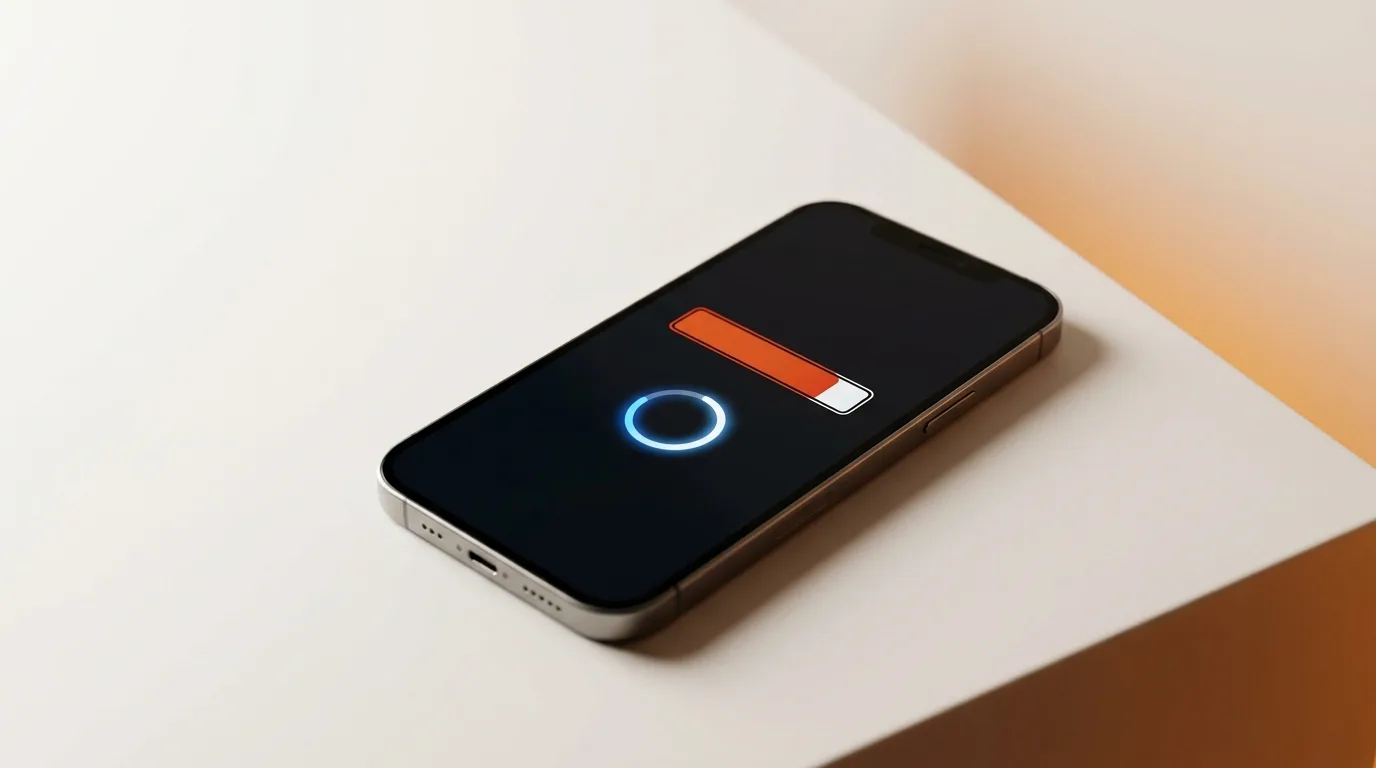
Why updates fail
Before troubleshooting, know the usual reasons an update won't install: not enough free storage to unpack it, a weak or dropping Wi-Fi connection, a battery below the minimum charge, or simply heavy load on the servers right after a release. Most are easy to resolve.
Free up space fast
The quickest wins for a full phone:
- Offload or delete apps you don't use (games and social apps are the biggest)
- Clear large videos and downloads, and empty the 'Recently Deleted' album
- Back photos and videos to cloud storage, then remove the local copies
- Clear app caches (especially chat and browser apps)
- Restart the phone afterwards so the freed space registers
Getting the update to install
Once you have space, give the update the best conditions to succeed:
- Connect to stable Wi-Fi and keep the phone charging above 50%
- Restart, then retry the update from settings
- Delete a partially-downloaded update and download it fresh
- If it still won't go, update via a computer as a fallback
When 'won't update' is a warning sign
Sometimes it's not just storage. A very old phone may have stopped receiving updates because the manufacturer no longer supports it — that's normal end-of-life, not a fault. But repeated update failures on a supported phone, or a device that freezes and fails midway every time, can hint at failing storage or a board issue worth checking.
Stuck or won't boot after an update?
The one scenario that needs real help is a phone that's stuck on the logo, looping, or bricked after an update attempt. That's recoverable but not always with the on-device options. iTweak can recover phones stuck after a failed update or restore, for Apple and Android, while protecting your data where possible — diagnosis first, then a clear quote, with free pickup across India if you can't visit.
Get it fixed
More diagnose-it-yourself guides
Not sure what's wrong? These walk you through spotting the fault before you book — and each links to the free phone self-test tools.
- Why is my phone screen flickering — and is it the screen or the logic board?
- Phone won't charge: how to tell if it's the port, the cable, or the battery
- Laptop won't turn on — how to diagnose it in 5 minutes
- Water-damaged phone: the first 10 minutes that decide if it lives
- How to check your phone for dead pixels (free 2-minute test)
- How to tell if your phone battery is failing (6 warning signs)
Related guides & repairs
Ready to fix it? See our phone repair service. Browse every Other brands repair-cost guide.