
How to Reset the System Management Controller (SMC) on a MacBook Pro
Rishab Bruno
Updated: November 18, 2025
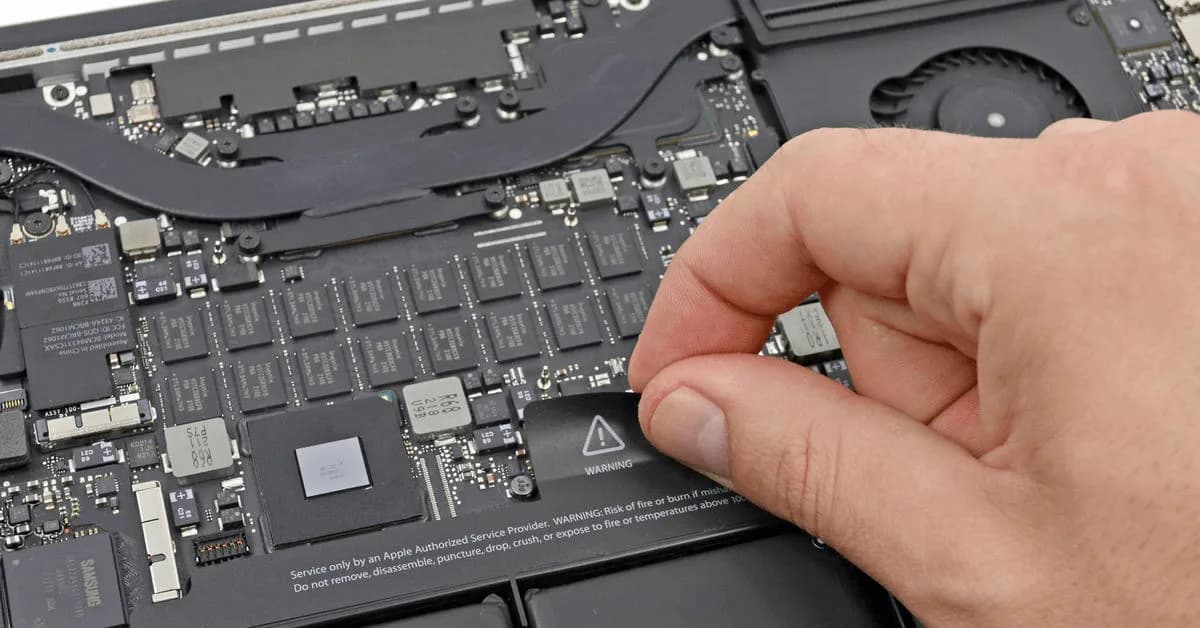
The steps to reset the System Management Controller (SMC) on a MacBook Pro can vary depending on the specific model of MacBook Pro you have. Here are the steps for resetting the SMC on some common MacBook Pro models:
MacBook Pro (2018 and later) with T2 chip:
- Shut down the MacBook Pro.
- Press and hold the right side Shift-Option-Control keys and the power button at the same time for 7 seconds.
- Release all keys and the power button at the same time.
- Press the power button again to turn on the MacBook Pro.
MacBook Pro (2016 and later) without T2 chip:
- Shut down the MacBook Pro.
- Press and hold the left side Shift-Control-Option keys and the power button at the same time for 10 seconds.
- Release all keys and the power button at the same time.
- Press the power button again to turn on the MacBook Pro.
MacBook Pro (2015 and earlier)
It's important to follow the steps for your specific MacBook Pro model to ensure that the SMC reset is successful. If you're unsure of which model you have, you can check the model information by going to the Apple menu in the top left corner of the screen and selecting "About This Mac." The model information will be displayed in the window that opens.
- Shut down the MacBook Pro.
- Unplug the power adapter.
- Press and hold the power button for 10 seconds.
- Release the power button.
- Attach the power adapter and wait for at least 5 seconds.
- Press the power button again to turn on the MacBook Pro.
Related guides & repairs
Ready to fix it? See our MacBook repair service. Browse every Apple repair-cost guide.